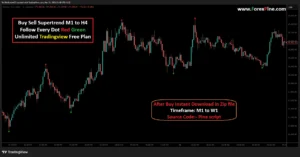
How to Code a “Buy/Sell” Signal Script with Risk-Reward Labels
Have you ever stared at a trading chart until your eyes burned, wondering when to pull the trigger? I certainly have. In fact, I remember sitting at my desk at 3 AM, completely exhausted, watching a candlestick chart bounce up and down. Consequently, my emotions were riding a wild rollercoaster. I would buy out of pure FOMO (Fear Of Missing Out), only to watch the price plummet seconds later. It was heartbreaking. However, everything changed when I discovered the magic of coding my very own Buy Sell Signal Indicator. 🚀
Today, I want to wrap my arm around your shoulder and walk you through this journey. Specifically, we are going to learn how to code a ‘Buy/Sell’ signal script that actually calculates and displays risk-reward labels right on your screen. Furthermore, I promise to keep this simple. Even if you are a total beginner who explains things like you are five years old (ELI5), you will understand this. Let us dive into the wonderful world of algorithmic trading together! ❤️
Step 1: Why You Desperately Need a Custom Indicator 💡
Trading based on gut feeling is a recipe for disaster. For instance, humans are emotional creatures. We feel fear, greed, and panic. Therefore, relying on a mathematical script removes that heavy emotional burden. In addition, a custom Buy Sell Signal Indicator does the hard work for you. It patiently waits for your exact conditions to be met. Once those conditions align, it simply prints a beautifully objective ‘BUY’ or ‘SELL’ on your chart. Thus, you get to sleep at night knowing you are following a plan. Isn’t that a breath of fresh air? ✨
Step 2: Choosing Our Canvas (Hello, Pine Script!) 📜
To begin our coding adventure, we need a language. Specifically, we will use Pine Script. Pine Script is the built-in coding language for TradingView, which is arguably the most popular charting platform on the planet. Moreover, it is incredibly beginner-friendly. For example, you do not need to download complicated software or set up clunky servers. You just open your web browser, click on the ‘Pine Editor’ tab at the bottom of your chart, and start typing. Consequently, the barrier to entry is delightfully low.
Step 3: Defining the Core Strategy 📈
Before we type a single line of code, we must know what we are looking for. Let us use a classic, easy-to-understand strategy: The Moving Average Crossover. Essentially, we will take two lines that track the average price of an asset over time. One line moves fast, while the other moves slow. Whenever the fast line crosses above the slow line, we feel a surge of excitement because that is our ‘Buy’ signal! Conversely, when the fast line crosses below the slow line, that is our ‘Sell’ signal. Naturally, this gives our script a solid, logical foundation. 🧠
Step 4: Writing the Initial Code ⚙️
Let us get our hands dirty. First, we tell TradingView what we are building by typing: indicator('My Awesome Buy Sell Signal Indicator', overlay=true). The ‘overlay=true’ part is crucial. In short, it tells the platform to paint our beautiful signals directly on top of the price candles, rather than hiding them in a separate box below. After that, we define our moving averages. For example, we can code: fastMA = ta.sma(close, 9) and slowMA = ta.sma(close, 21). Here, ‘ta.sma’ stands for Simple Moving Average. It is just a fancy way of smoothing out price bumps so we can see the real trend. 🌊
Step 5: Coding the Buy and Sell Triggers 🎯
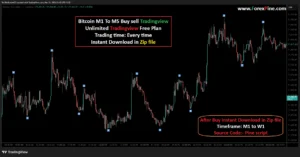
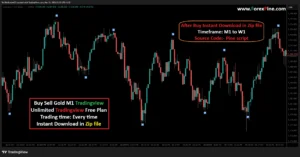
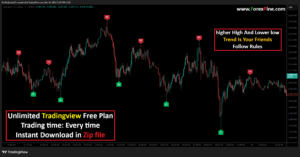
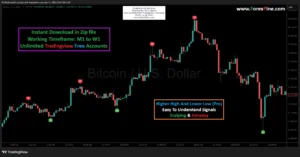
Now comes the thrilling part. We need to tell the computer exactly when to shout ‘BUY!’ or ‘SELL!’. To do this, we use a simple crossover function. Specifically, we write: buyCondition = ta.crossover(fastMA, slowMA). Similarly, for selling, we write: sellCondition = ta.crossunder(fastMA, slowMA). Can you feel the power in those two tiny lines of code? Furthermore, we will use the ‘plotshape’ function to draw cute little arrows on our chart. Therefore, whenever ‘buyCondition’ is true, a bright green arrow points up. Whenever ‘sellCondition’ is true, a fierce red arrow points down. ⚠️
Step 6: The Magic of Risk-Reward Math 🧮
Here is where most amateur traders fail. They know when to buy, but they have absolutely no idea where to put their stop-loss or take-profit. Consequently, they lose money even when they are right! We are going to fix that by calculating our Risk-Reward ratio dynamically. For instance, when our script triggers a buy, we will look at the lowest price of the recent candles. That becomes our stop-loss line. Let us say the risk (the distance from our entry price to the stop-loss) is $10. If we want a 1:2 risk-reward ratio, we simply multiply that risk by two. Thus, our take-profit target sits exactly $20 above our entry. This mathematical armor protects your trading account from your own worst instincts. 🛡️
Step 7: Plotting the Risk-Reward Labels 🎨
Seeing the math in your head is nice, but seeing it painted on your chart is pure bliss. We will use Pine Script’s ‘label.new’ function to draw elegant text boxes right next to our entry arrows. For example, we can write a snippet that says: ‘If we buy, draw a green label showing the exact Take Profit price and a red label showing the Stop Loss price.’ Additionally, you can customize the colors, text size, and even the font style! As a result, your chart goes from looking like a chaotic mess of bars to a highly organized, professional dashboard. 🖥️
Step 8: Testing Your Masterpiece in Real Life 🧪
Coding is only half the battle. Once you finish typing, you must hit ‘Add to Chart’. Instantly, your historical data will light up with your brand-new signals. However, do not blindly trust the first draft. Often, you will spot weird glitches where a signal fired too late or too early. This is completely normal! In fact, debugging is just a fancy word for learning. Look closely at the historical trades. Did the Buy Sell Signal Indicator keep you out of choppy, dangerous markets? If not, simply adjust your moving average lengths from 9 and 21 to maybe 50 and 200. Ultimately, testing builds the ultimate trading confidence. 🔍
Step 9: Adding Alerts so You Can Live Your Life 🏖️
Remember that painful memory of staring at the screen at 3 AM? We are banishing that nightmare forever. By adding a simple alert function to our code, TradingView can literally text your phone or send you an email the exact second your buy or sell condition is met. Specifically, you just add: alertcondition(buyCondition, title='Buy Alert!', message='Wake up! It is time to buy!'). Consequently, you can go for a walk, play with your kids, or just take a much-needed nap. The robot does the watching; you do the living. 🌅
Step 10: Embracing the Algorithmic Journey 🚀
You have just crossed a massive threshold. Most people spend their entire lives consuming content, yet they never actually build anything of their own. By coding your own script, you have taken control of your financial destiny. Of course, no indicator is perfect. You will still have losing trades. Nevertheless, you now have a statistically sound, emotionless system fighting in your corner. Furthermore, the risk-reward labels ensure that your winners will always be mathematically larger than your losers. That is the true secret of the wealthy! 💸
Conclusion: Your Code, Your Future ❤️
We have covered a massive amount of ground today. From the dark depths of emotional trading to the bright, organized world of custom coding, you have seen how easy it actually is. Constructing your own Buy Sell Signal Indicator with precise risk-reward labels is not just a neat trick; it is a life-changing skill. Therefore, open up that Pine Editor. Do not be afraid of the blank screen. Start typing, make mistakes, and watch your trading edge come to life. I believe in you. You completely have the power to code your way to freedom. Now, go build something amazing! ✨🚀